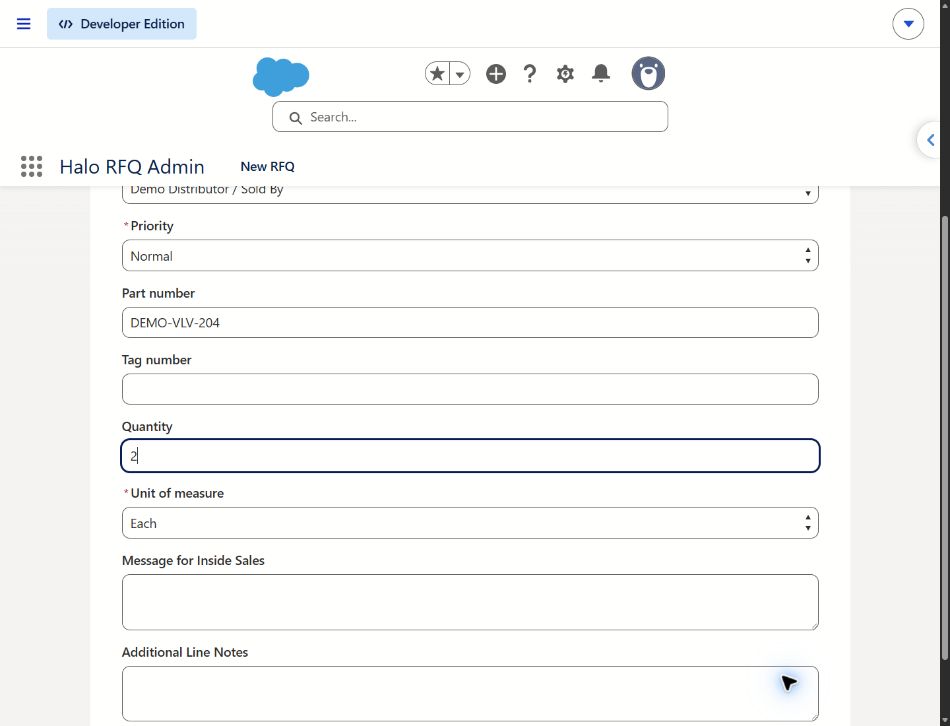
Quick RFQ
Enter a known part number. No QR tag needed.
 HALO RFQ DEMO
Recreated practice · Fictional data · No camera or submission
Try Quick RFQ →Capture the part and request details in the field. Keep distributor attribution visible for the person reviewing the next step.
Type a part number · Scan a QR · Read a label photo ↓
2-minute synthetic walkthrough · No sign-in or real data needed
Try the app buttons · Recreated demo · Nothing sent
Compare current app scope →
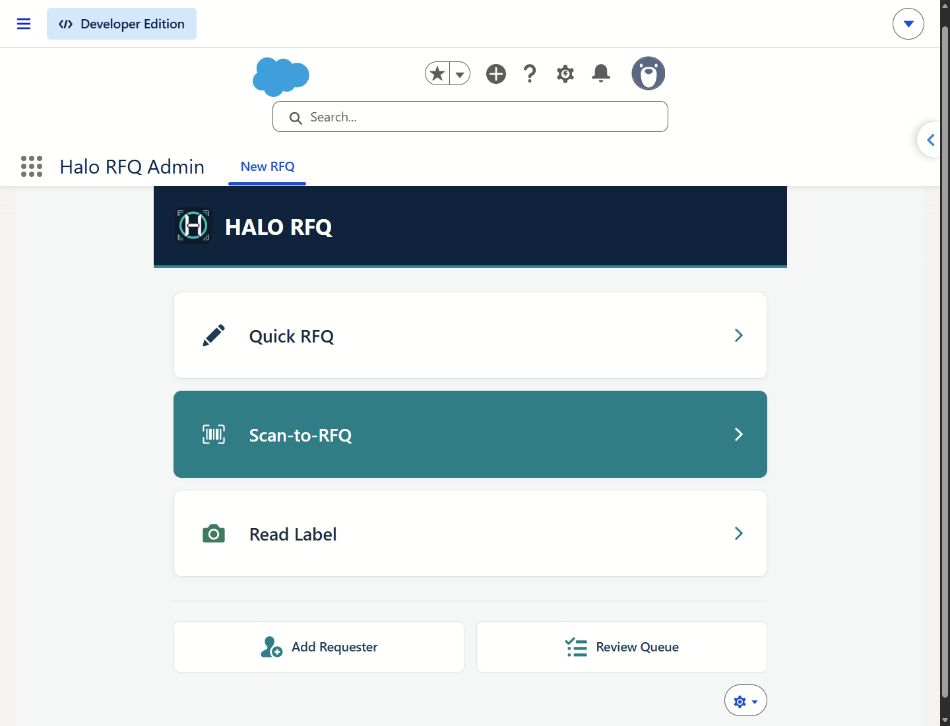 Enlarge screenshot ↗
Choose any app button in the phone above. For a shorter introduction, open the method walkthroughs below.
Enter a known part number. No QR tag needed.
HALO RFQ DEMORecreated practice · Fictional data · No camera or submission
Try Quick RFQ →Frame a QR code, then review the identifier.
HALO RFQ DEMORecreated practice · Fictional data · No camera or submission
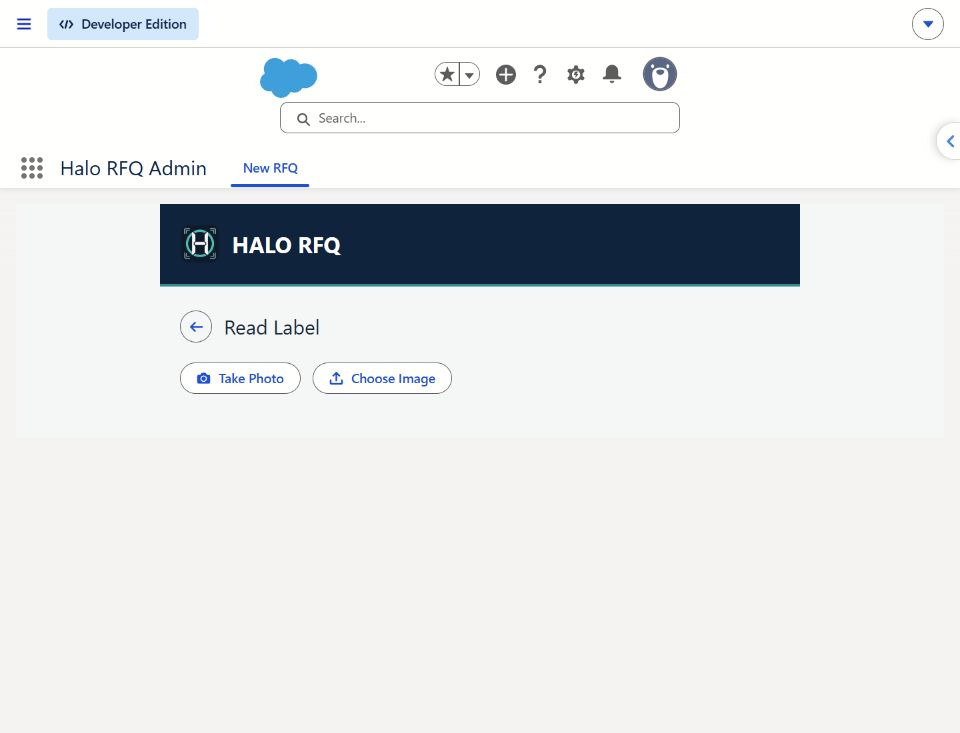
Try Scan-to-RFQ →Photograph a tag, then check the suggestion.
HALO RFQ DEMORecreated practice · Fictional data · No camera or submission
Try Read Label →The request should carry its context beyond the phone. Halo RFQ’s email designs give the requester, distributor and representative a message shaped around their role in the handoff.
Halo RFQA branded message keeps the reference and captured details together.
A proposed short alert linking to the request. Provider, consent and delivery acceptance remain future work.
Illustrative concept only. SMS sending is not implemented or demonstrated.Salesforce role-specific email: demonstrated in the demo. Standalone email: previews available, live acceptance pending. SMS: planned. See capability details →

A facilities professional can start with the identifier in front of them, record what is needed and leave suitability decisions for human review.
Explore the field-to-review demo ↗For the product interface, view the actual app screenshots.
Explore standalone capture or a Salesforce-native workflow. Capabilities and acceptance requirements differ by track.
A synthetic walkthrough today. A scoped pilot conversation next.